
Client Tagging
Tags allow you to group and segment your clients which may help improve many of your business workflows such as client communication, billing processing, internal coordination and reporting & analytics.
Tags are displayed by the client name in the Appointment details and Client List.
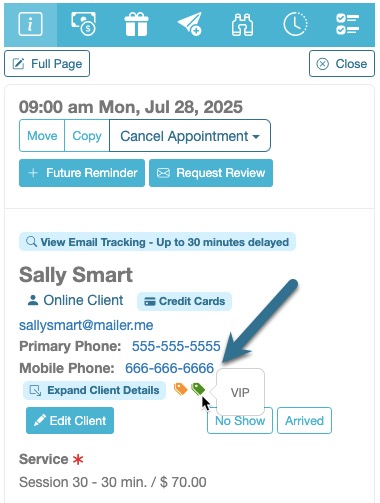
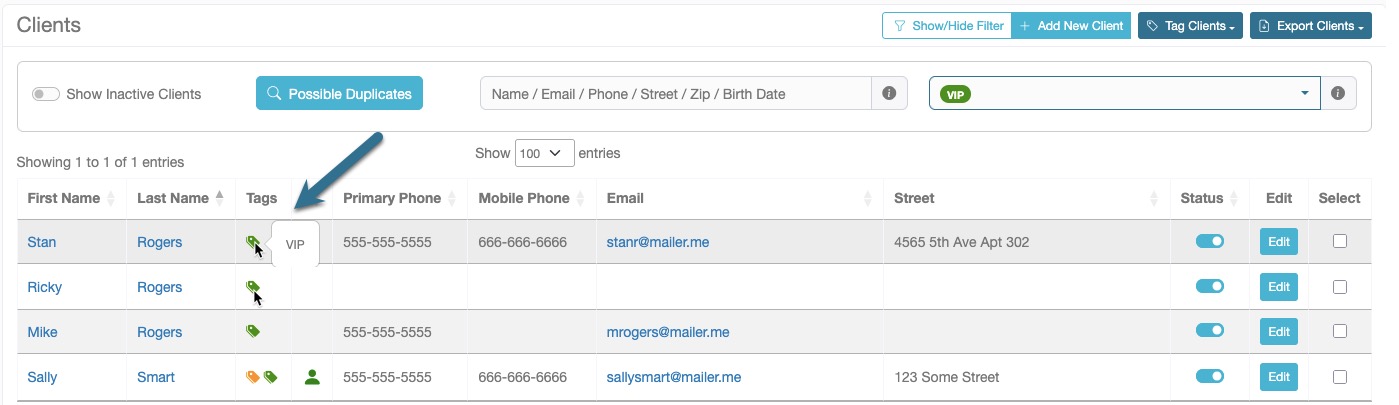
Creating and Editing Client Tags
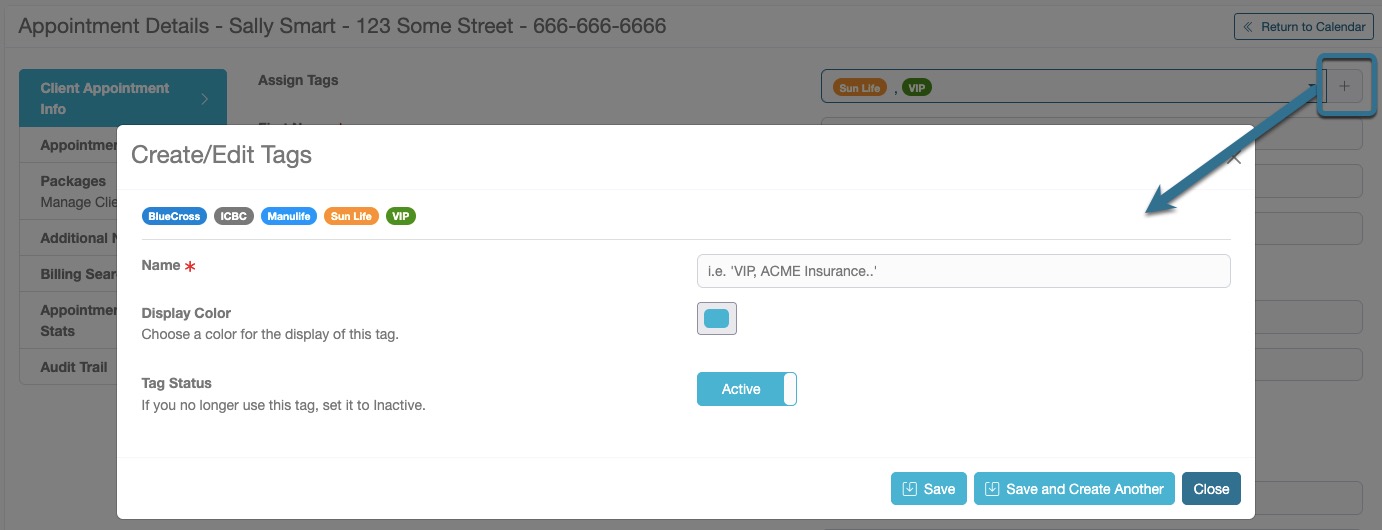
Tags can be created from several places. Each tag must be uniquely named and can be color coded.
Client List
There is a “Tag Clients” button in the upper right of the Client List page with “Create/Edit Tags“.
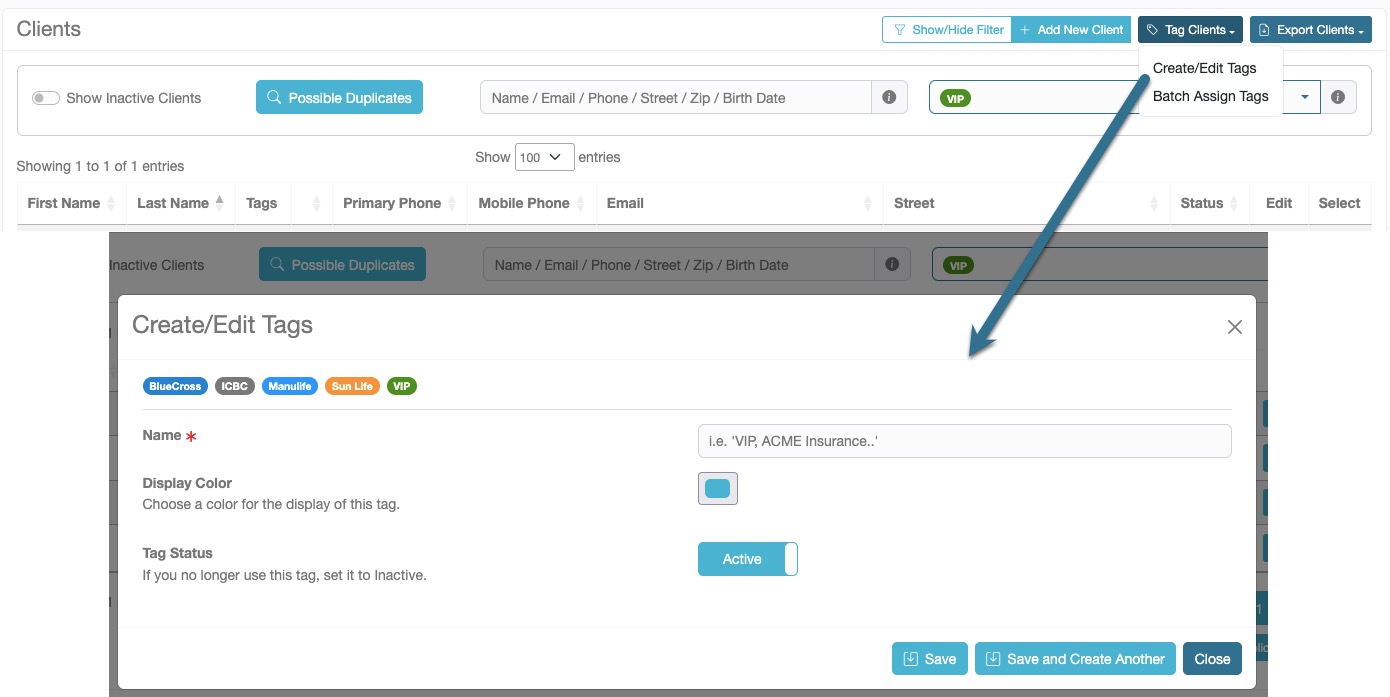
Client Profile from the Client List
At the top of the client profile, to the right of the “Assign Tag” selector, there is a + icon that opens the Tag Create/Edit window.
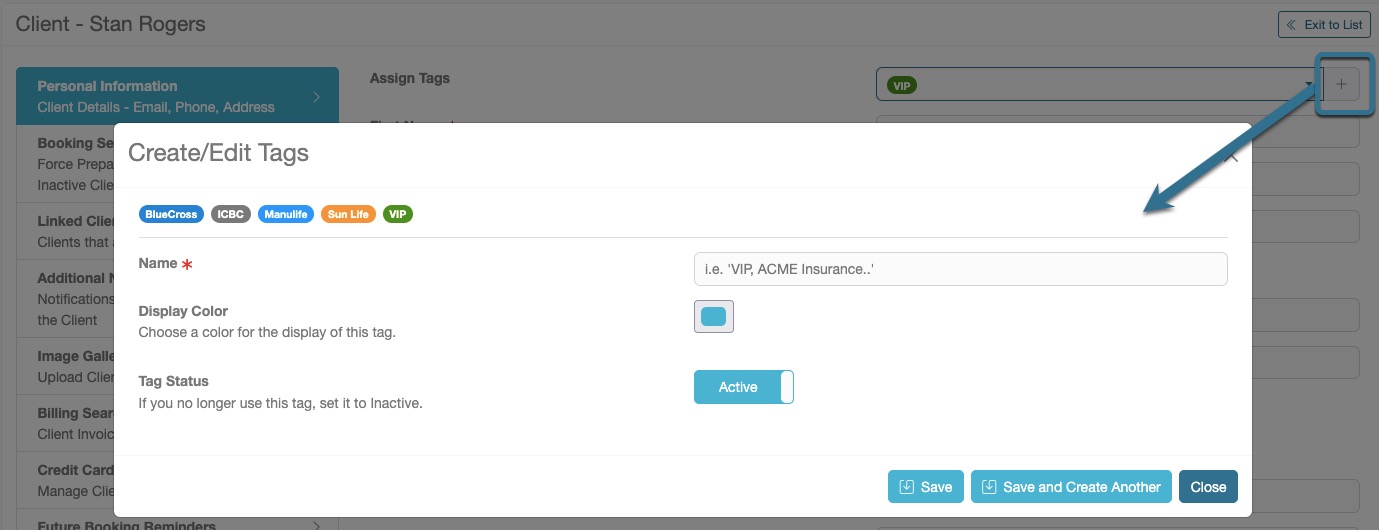
Client Profile from the Appointment Details
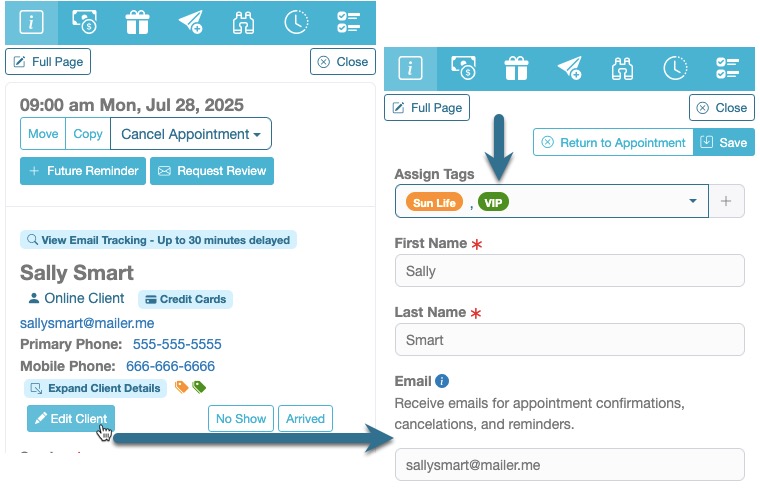
In any appointment, you can select “Edit Client” to open the client profile to access the “Assign Tag” selector, with the same + icon that opens the Tag Create/Edit window.
Assigning Client Tags
Single Client
In the client profile, accessed from the Client List or Appointment Details, you can select tags to assign from the “Assign Tags” selector. You can assign as many tags as needed.
Batch or Multiple Clients Assignment
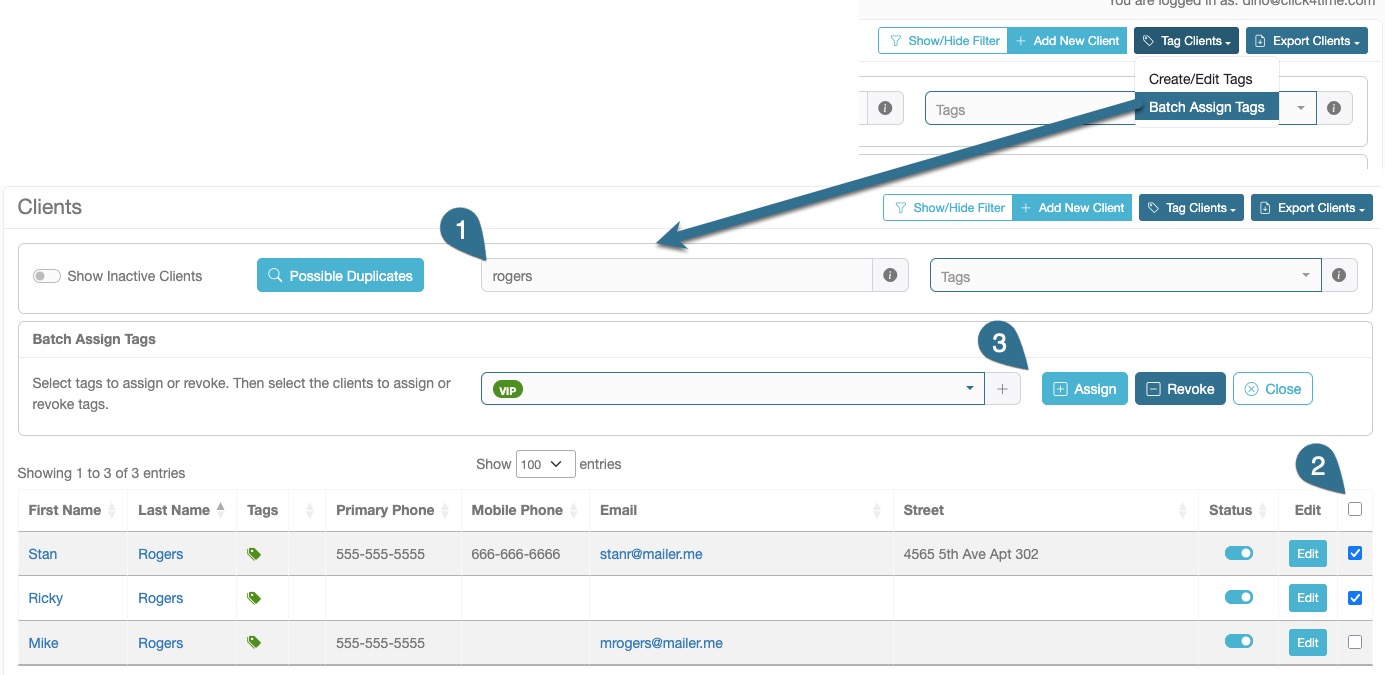
- From the Client List, go to the “Tag Clients > Batch Assign Tags” option in the top right. Then search for the clients by name or existing tags.
- Choose the tags to assign. Multiple tags can be assign at the same time.
- In the resulting search list, select the clients with the check boxes on the right and select “Asssign”.
You can also Revoke tags in the same way.
NOTE: For a better experience, we suggest batch assigning tags using a larger screen like a laptop or desktop computer.
Searching for Tagged Clients
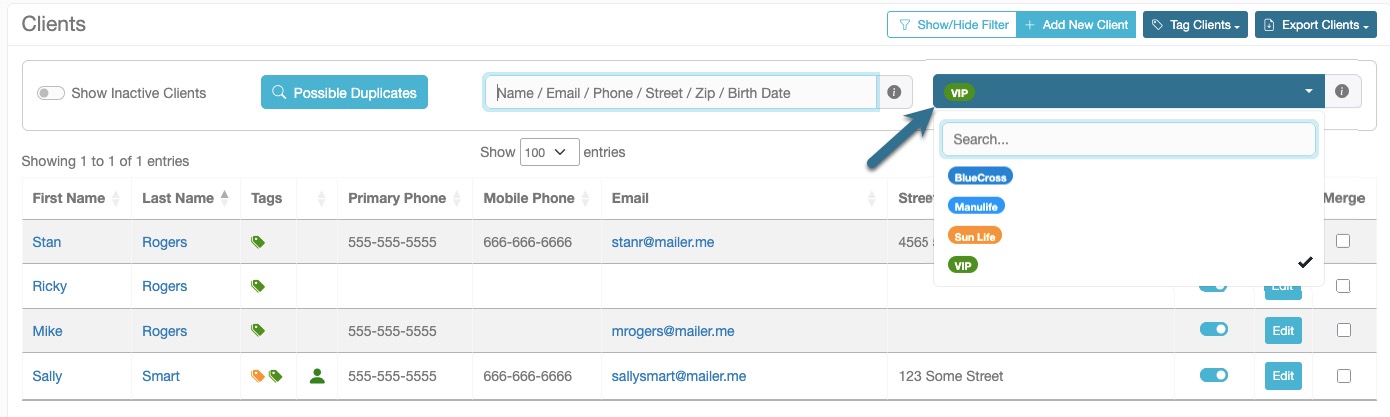
When searching for clients or invoices, you can filter your search by Tags in the Client List, Finance > Invoices and certain Reports.
Client List
Select one or many tags to display a list of matching clients.
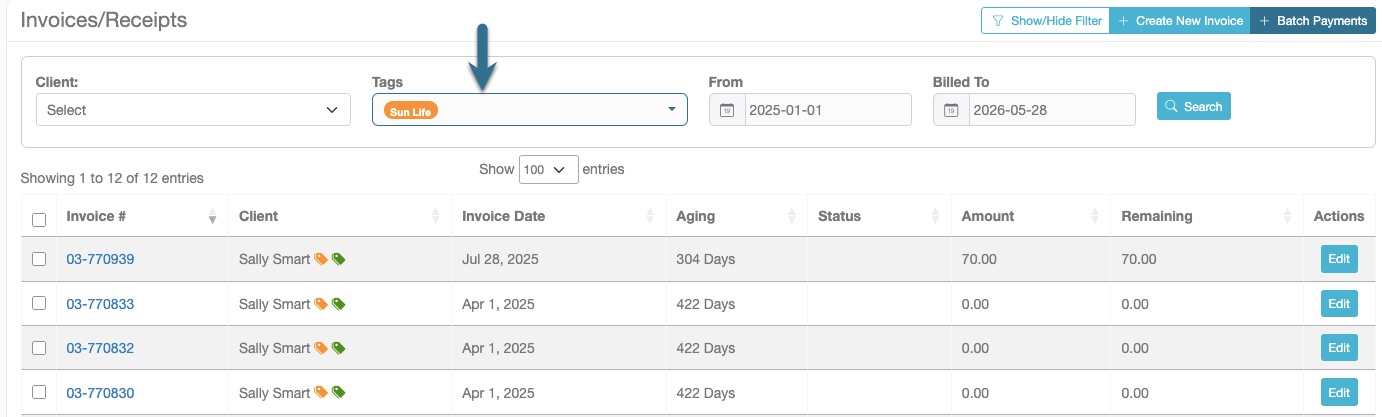
Finance > Invoices
When searching for invoices associated with a specific group of clients, you can choose tags to filter your search, along with a date range.
Reports
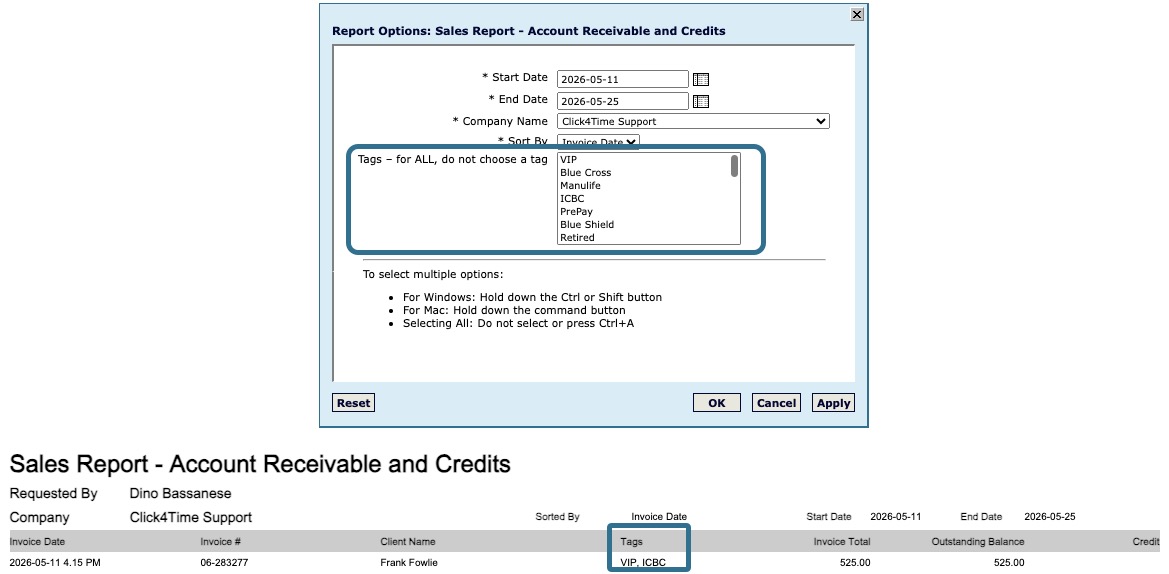
Several of the reports also include an option to filter the results by tags.
- Client Details
- Sales Report – Account Receivable and Credits
- Sales Report – Appointment Revenue Summary
- Sales Report – Invoice Payments
Exporting Clients
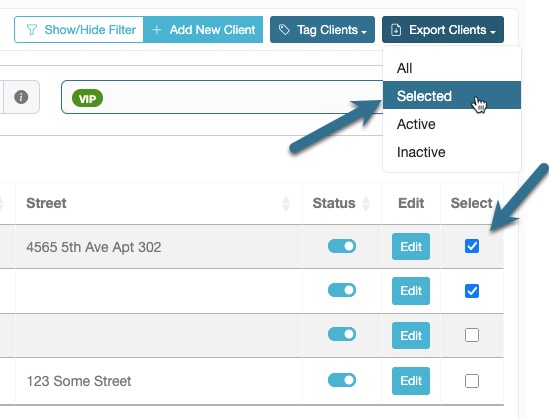
From the Client List, Owners can export client details (All, Selected, Active, Inactive). To filter your client export, you can search by tags and select all or specific clients to include in the file. The selected client details will be exported as a CSV file to then use as needed, possibly a targeted email campaign or client outreach.
Best Practices
- Keep your tag labels short. Cannot be more than 90 characters.
- Color your labels for visual distinction.
- Be careful about deleting tags as that action cannot be undone.